Recommended Free Tools
Everything Xiaomi is reader-supported. When you buy through links on our site, we may earn an affiliate commission. As an Amazon Associate I earn from qualifying purchases. Learn more
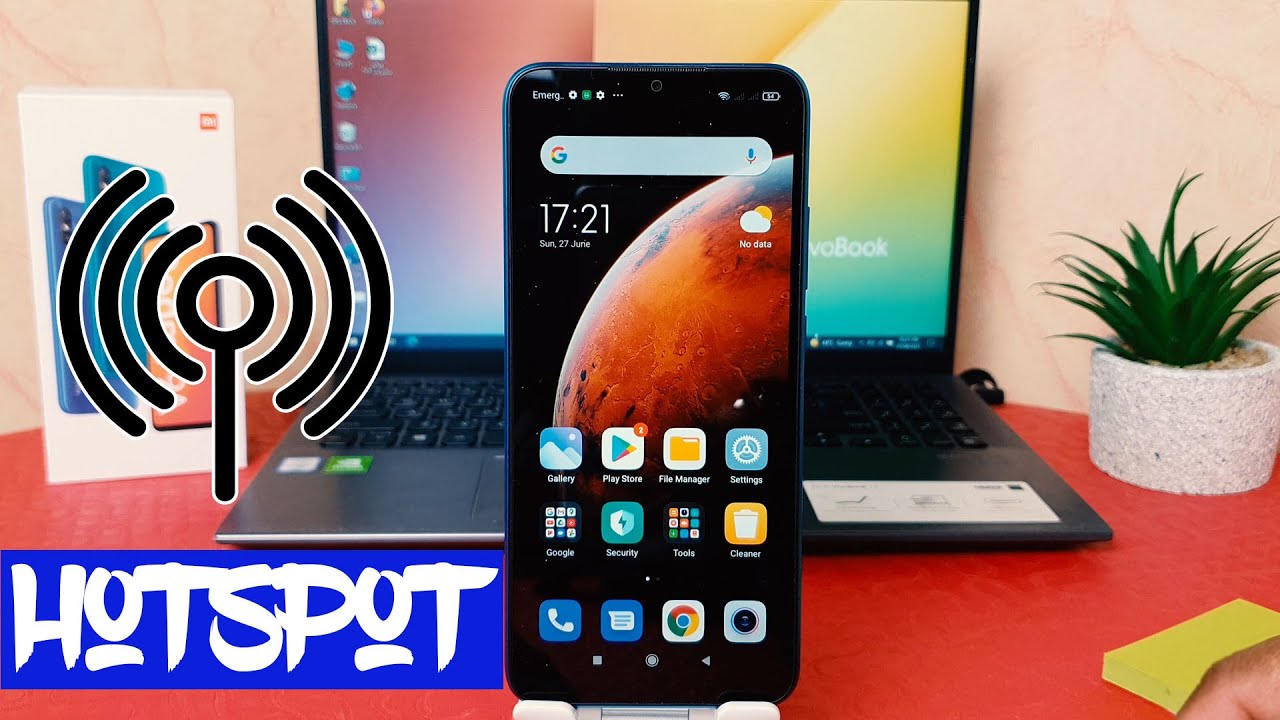
Using your Xiaomi phone as a WiFi hotspot can be surprisingly handy. Whether you’re stuck somewhere without internet, traveling for work, or just trying to get your tablet online without a separate data plan, your phone can double as a portable router. And the best part? It’s fairly easy to set up. Here’s how to get started, plus a few things to keep in mind.
Why Turn Your Xiaomi into a WiFi Hotspot?
There are plenty of everyday situations where a mobile hotspot just makes sense:
As an Amazon Associate I earn from qualifying purchases.
Quick wins for a faster PC:
Repair Windows errors before they cause bigger problemsFix Now →Fix the driver behind crashes, sound loss and screen glitchesFind Drivers →- No Wi-Fi around: Maybe you’re in a cafe that doesn’t offer public internet, or your home connection is acting up.
- On the move: Staying connected while traveling—especially if you need to work—can be essential.
- More devices than data plans: Your tablet or laptop doesn’t have its own SIM card. Why not share your phone’s data?
- Cutting costs: Instead of paying for multiple plans, you can make better use of the one you already have.
Setting Up a Xiaomi Hotspot: Step-by-Step
There are two main ways to enable the hotspot: through the settings menu or via the quick settings panel. Let’s start with the more detailed method.
Method 1: Via the Settings Menu
Step 1: Open Settings
Unlock your Xiaomi phone and tap the “Settings” icon—usually found on your home screen or in the app drawer.
Shopping ad

- USA MARKET ONLY WORK ON TMOBILE BOOST MINT TELLO OR ANY UNDER TMOBILE NETWORK PHONE NEEDS A SIM CARD ALREADY ACTIVATED ,OUTSIDE USA WORKS ANY GSM CARRIER SIM GSM FCC ID: 2AFZZPC0AG
- Dual SIM (nano SIM + nano SIM or nano SIM + eSIM) (NO MICRO SD) 5G: 5G SA: n1/2/3/5/7/8/20/26/28/38/40/41/66*(70M)//77/78/485G NSA: n1/3/5/7/8/20/28/38/40/41/66*(70M)/77/784G LTE TDD: B38/40/41/42/484G LTE FDD: B1/2/3/4/5/7/8/18/19/20/26/28/66*(70M)/713G WCDMA: 1/2/4/5/6/8/192G GSM: 2/3/5/8Supports 4x4 MIMO*5G SA/NSA N66(70M) and 4G B66(70M): UL 1710MHz~1780MHz, DL 2110MHz~2180MHz*5G connectivity may vary based on region availability and local operator support.
- 6.83" 1.5K 120Hz ultra-bright AMOLED displayResolution: 2772 x 1280Contrast ratio: 8,000,000:1Refresh rate: Up to 120Hz*Refresh rate can be adjusted to up to 120Hz for supported apps.Peak brightness: 3500 nits covering 25% display areaHBM brightness: 2000 nitsTypical brightness: 800 n: 2560Hz*480Hz touch sampling rate is activated under Game Turbo Mode.*2560Hz instant touch sampling rate is activated under Game Turbo Mode.12-bit color depth, 68 billion colorsDCI-P3 wide display 2.0HDR10+TÜV Rheinland Low Blue Light (Hardware Solution) CertifiedTÜV Rheinland Flicker Free CertifiedTÜV Rheinland Circadian Friendly CertifiedDolby VisionCorning Gorilla Glass 7i
- MediaTek Dimensity 9500s3nm manufacturing process1 x Cortex-X925, up to 3.73GHz3 x Cortex-X4, up to 3.3GHz4 x Cortex-A720, up to 2.4GHzImmortalis-G925 MC11NPU 890 - 8500mAh (typ)100W HyperChargeUSB Type-C charging portUp to 27W reverse chargingSupports PD3.0/PD2.0Smart charging
- Wi-Fi Protocol: Wi-Fi 7/ Wi-Fi 6/ Wi-Fi 5/ Wi-Fi 4 and 802.11a/b/g*Wi-Fi 7/Wi-Fi 6 capability may vary based on regional availability and local network support. Wi-Fi connectivity (including Wi-Fi frequency bands, Wi-Fi standards and other features as ratified in IEEE Standard 802.11 specifications) may vary based on regional availability and local network support. The function may be added via OTA when and where applicable.WLAN frequency: 2.4G Wi-Fi | 5G Wi-FiSupports Multi-Link Operation, 2x2 MIMO, 8x8 Sounding for MU-MIMO, Wi-Fi Direct, MiracastBluetooth 6.0, Dual-BluetoothSupports SBC / AAC / LDAC / LHDC 5.0 / LC3 / ASHA / AuracastNFC
Step 2: Find the Hotspot Option
Scroll to something like “Portable hotspot” or “Tethering & portable hotspot.” Depending on your MIUI version, this is generally under “Connection & sharing” or “Network & internet.”
Step 3: Enable Hotspot
Flip the switch next to “Portable hotspot” to turn it on. Your phone will now begin broadcasting a WiFi signal.
Do these 3 things before closing this tab:
1Fix the driver behind crashes, sound loss and screen glitches2Clear out junk files and repair common Windows errors3Scan for outdated or missing drivers - takes under a minuteStep 4: Configure Your Hotspot (Optional, But Worth It)
Take a moment to tweak a few settings for security and usability:
- Network Name (SSID): This is what other devices will see. Change it to something easy to recognize.
- Security: Always choose WPA2-PSK or WPA3 for secure connections.
- Password: Use a strong, unique password. Avoid anything obvious like “12345678.”
- AP Band: Choose between 2.4GHz (better range, lower speed) or 5GHz (faster, but shorter range). Go with 5GHz if you’re nearby and your device supports it.
- Data Limit: Optionally, set a cap—say 500MB or 1GB—to avoid blowing through your data.
- Auto-Off: Enable this to turn off the hotspot when no one is connected, which helps conserve battery.
- Connected Devices: Check which devices are online and block any that seem unfamiliar.
Step 5: Connect Other Devices
On the device you’re connecting, go to its WiFi settings, select your hotspot’s SSID, and enter the password.
Method 2: Use the Quick Settings Panel
For quicker access:
Step 1: Swipe Down
Swipe down twice from the top of your screen to open the full quick settings menu.
Shopping ad

- International Model - No Warranty in US. USA ONLY COMPATIBLE WITH TMOBILE / MINT, TELLO GLOBAL VERSION . ****** Does NOT Work With Verizon Sprint Boost Metro Pcs At&t Cricket ***** . Unlocked Worldwide . - FCC ID: 2AFZZPNFAG
- Dual Nano sim 5G + eSIM (No micro SD support): 5G: Supports NSA + SA5G: 5G SA: 1/2/3/5/7/8/12/20/25/26/28/38/40/41/48/66/75/77/78 5G NSA: n1/3/5/7/8/20/28/38/40/41/66/75/77/78: 4G: LTE FDD: B1/2/3/4/5/7/8/12/13/17/18/19/20/25/26/28/32/66/71 4G: LTE TDD: B38/39/40/41/42/48: 3G: UMTS: B1/2/4/5/6/8/192G: GSM: B2/3/5/8 Supports 4x4 MIMO
- Leica Summilux optical lensVARIO-SUMMILUX 1:1.67-3.0/15-115 ASPH.Leica 23mm main camera50MPLight Fusion 9502.4μm 4-in-1 Super Pixelf/1.67OIS23mm equivalent focal lengthLeica 115mm periscope telephoto50MPf/3.0OIS115mm equivalent focal lengthLeica 15mm ultra-wide camera12MPf/2.215mm equivalent focal length120º FOV Rear camera video recording8K (7680 x 4320) video recording at 30fps4K video recording at 120fps p (190+ (1280 x 720) video recording at 30fpsLog video recording up to 4K at 30fps, 60fpsSlow-motion video recording:- 720p at 120fps, 240fps, 480fps, 960fps, 1920fpootSteady
- 6.83" 144Hz eye-care AMOLED displayCorning Gorilla Glass 7iResolution: 1.5K, 2772 x 1280, 447 PPIRefresh rate: Up to 144Hz refresh rate*Touch sampling rate: Up to 480Hz, 3500Hz instantaneous*Color gamut: 100% DCI-P3Color depth: 12bit, 68 billion colorsBrightness: 600 (typ), 2000 (HBM)Peak brightness: 3500nits (UHBM) @APL25 dimmingOriginal color PRO | Pro HDR | Wet Touch Technology 2.0 | Xiaomi Vision Care*HDR10+, Dolby VisionTÜV Rheinland Low Blue Light (Hardware Solution) CertifiedTÜV Rheinland Flicker Free CertifiedTÜV Rheinland Circadian Friendly CertifiedTÜV Rheinland Intelligent Eye Care Certified
- MediaTek Dimensity 95003nm processCPU:1 x C1-Ultra, up to 4.21GHz3 x C1-Premium, up to 3.5GHz4 x C1-Pro, up to 2.7GHzGPU: Mali G1-UltraAI: NPU 990
Step 2: Find the Hotspot Icon
Look for a button labeled “Hotspot”—usually shown as a WiFi symbol with an arrow.
PC Slower Than It Used to Be?
A free scan shows the junk files, broken settings and background clutter dragging Windows down - then fixes them in one click.Free scan · Windows 10 & 11Crashes, No Sound, or Screen Glitches?
Random freezes, missing sound and display glitches usually trace back to one bad driver. Find and replace yours safely.Free scan · under a minuteStep 3: Tap to Toggle
Tap it to turn the hotspot on or off. It’ll use the last settings you configured, so if you haven’t set it up yet, do that via Method 1.
Pro Tip: The quick panel is great for toggling, but it’s not where you want to go for setup or troubleshooting.
Troubleshooting Tips
Things don’t always go smoothly. If you’re running into issues, here’s what to try:
- Hotspot won’t turn on: Check that mobile data is active and your phone isn’t in airplane mode. A quick restart might also help.
- Can’t connect: Double-check the password and SSID. Some older devices may struggle with newer security types—try switching to WPA2.
- Slow speeds: Could be due to weak mobile signal, data throttling, too many connected devices, or background apps using data.
- Battery draining fast: Using your phone as a hotspot eats battery. Keep it plugged in, or use the auto-turn-off feature.
Best Practices to Keep in Mind
- Track your data: Hotspot use can quickly eat into your data allowance.
- Secure your connection: Always use a strong WPA2 or WPA3 password.
- Stay aware of connected devices: Check regularly to ensure only your devices are using the connection.
- Mind your battery: Bring a charger or power bank if you’re planning extended use.
- Keep software updated: MIUI updates often include bug fixes and performance improvements.
Using your Xiaomi phone as a WiFi hotspot is an easy and flexible way to stay online when traditional connections fail. With just a few taps and a bit of configuration, you can turn your phone into a reliable mobile router—one that goes wherever you do.
What’s actually slowing this PC down?
Pick the symptom - the matching free tool is one click away.
Quick Recap
Product prices and availability are accurate as of the date/time indicated and are subject to change. Any price and availability information displayed on Amazon at the time of purchase will apply.
Independent reader supportYour contribution helps us test, update, and keep practical guides available for everyone.