Everything Xiaomi is reader-supported. When you buy through links on our site, we may earn an affiliate commission. As an Amazon Associate I earn from qualifying purchases. Learn more
Getting a new Xiaomi phone is exciting! But before you fully enjoy its features, you’ll want to bring over all your important data from your old device. Whether you’re switching from another Android phone or even an iPhone, Xiaomi offers several convenient ways to transfer your contacts, photos, videos, messages, and more in April 2025. I’ve helped many users make this transition smoothly, and this guide will walk you through the step-by-step process to transfer data from your old phone to your new Xiaomi device.
Step 1: Preparation is Key – Getting Both Phones Ready
As an Amazon Associate I earn from qualifying purchases.
Before you start the transfer, ensure both your old and new phones are prepared for a smooth process.
- Charge Both Phones: Make sure both your old phone and your new Xiaomi phone have sufficient battery life (at least 50% is recommended) to avoid interruptions during the transfer.
- Gather Necessary Cables: Depending on the transfer method you choose, you might need USB cables to connect both phones or to connect them to a computer.
- Ensure Wi-Fi Connectivity: Most data transfer methods rely on a stable Wi-Fi connection. Make sure both phones are connected to the same Wi-Fi network.
- Back Up Your Old Phone (Optional but Recommended): While the transfer process aims to move your data directly, it’s always a good idea to have a backup of your old phone just in case something goes wrong. You can use your old phone’s built-in backup features (like Google Backup on Android or iCloud Backup on iPhone) or a computer.
- Unlock Both Phones: You’ll need to have both your old and new Xiaomi phones unlocked to initiate the data transfer.
Step 2: Method 1: Using Xiaomi’s Built-in Mi Mover App
Shopping ad

- USA MARKET ONLY WORK ON TMOBILE BOOST MINT TELLO OR ANY UNDER TMOBILE NETWORK PHONE NEEDS A SIM CARD ALREADY ACTIVATED ,OUTSIDE USA WORKS ANY GSM CARRIER SIM GSM FCC ID: 2AFZZPC0AG
- Dual SIM (nano SIM + nano SIM or nano SIM + eSIM) (NO MICRO SD) 5G: 5G SA: n1/2/3/5/7/8/20/26/28/38/40/41/66*(70M)//77/78/485G NSA: n1/3/5/7/8/20/28/38/40/41/66*(70M)/77/784G LTE TDD: B38/40/41/42/484G LTE FDD: B1/2/3/4/5/7/8/18/19/20/26/28/66*(70M)/713G WCDMA: 1/2/4/5/6/8/192G GSM: 2/3/5/8Supports 4x4 MIMO*5G SA/NSA N66(70M) and 4G B66(70M): UL 1710MHz~1780MHz, DL 2110MHz~2180MHz*5G connectivity may vary based on region availability and local operator support.
- 6.83" 1.5K 120Hz ultra-bright AMOLED displayResolution: 2772 x 1280Contrast ratio: 8,000,000:1Refresh rate: Up to 120Hz*Refresh rate can be adjusted to up to 120Hz for supported apps.Peak brightness: 3500 nits covering 25% display areaHBM brightness: 2000 nitsTypical brightness: 800 n: 2560Hz*480Hz touch sampling rate is activated under Game Turbo Mode.*2560Hz instant touch sampling rate is activated under Game Turbo Mode.12-bit color depth, 68 billion colorsDCI-P3 wide display 2.0HDR10+TÜV Rheinland Low Blue Light (Hardware Solution) CertifiedTÜV Rheinland Flicker Free CertifiedTÜV Rheinland Circadian Friendly CertifiedDolby VisionCorning Gorilla Glass 7i
- MediaTek Dimensity 9500s3nm manufacturing process1 x Cortex-X925, up to 3.73GHz3 x Cortex-X4, up to 3.3GHz4 x Cortex-A720, up to 2.4GHzImmortalis-G925 MC11NPU 890 - 8500mAh (typ)100W HyperChargeUSB Type-C charging portUp to 27W reverse chargingSupports PD3.0/PD2.0Smart charging
- Wi-Fi Protocol: Wi-Fi 7/ Wi-Fi 6/ Wi-Fi 5/ Wi-Fi 4 and 802.11a/b/g*Wi-Fi 7/Wi-Fi 6 capability may vary based on regional availability and local network support. Wi-Fi connectivity (including Wi-Fi frequency bands, Wi-Fi standards and other features as ratified in IEEE Standard 802.11 specifications) may vary based on regional availability and local network support. The function may be added via OTA when and where applicable.WLAN frequency: 2.4G Wi-Fi | 5G Wi-FiSupports Multi-Link Operation, 2x2 MIMO, 8x8 Sounding for MU-MIMO, Wi-Fi Direct, MiracastBluetooth 6.0, Dual-BluetoothSupports SBC / AAC / LDAC / LHDC 5.0 / LC3 / ASHA / AuracastNFC
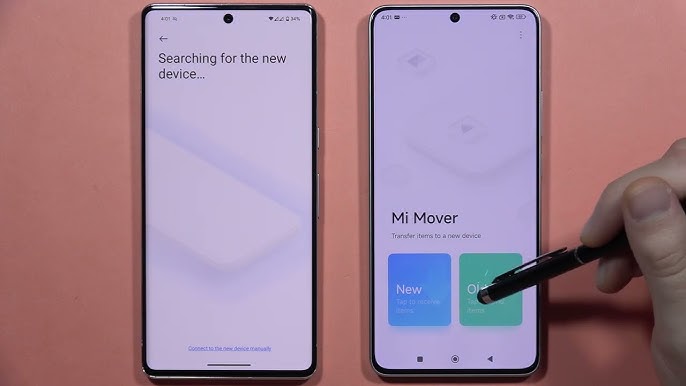
Xiaomi phones come equipped with a dedicated app called Mi Mover, which is designed to seamlessly transfer data from your old Android phone or even an iPhone.
- Open Mi Mover on Your New Xiaomi Phone: You can usually find Mi Mover pre-installed in the app drawer. If not, you can download it from the Google Play Store. Launch the Mi Mover app on your new Xiaomi device.
- Select “I’m a receiver”: On the Mi Mover welcome screen, you’ll see two options: “I’m a sender” and “I’m a receiver.” Tap on “I’m a receiver.”
- Choose Your Old Phone’s Operating System: Mi Mover will ask you what type of phone you are transferring data from. Select “Android” if your old phone is an Android device or “iPhone/iPad” if you’re switching from an Apple device.
- Follow the On-Screen Instructions on Your New Xiaomi Phone: Your Xiaomi phone will display a QR code.
- Open Mi Mover on Your Old Android Phone (If Applicable): If your old phone is also an Android device, download and launch the Mi Mover app on it.
- Select “I’m a sender” on Your Old Android Phone: Tap on “I’m a sender.”
- Scan the QR Code: Use your old Android phone to scan the QR code displayed on your new Xiaomi phone. This will establish a direct Wi-Fi connection between the two devices.
- Select the Data to Transfer: Once connected, Mi Mover will display a list of data categories you can transfer, such as Contacts, Messages, Photos, Videos, Music, Apps, and more. Select the items you want to move to your new Xiaomi phone.
- Tap “Send” or “Start Transferring”: After selecting the data, tap the “Send” or “Start Transferring” button. The transfer process will begin.
- Wait for the Transfer to Complete: The time it takes to transfer the data will depend on the amount of data you’re moving. Keep both phones close to each other and connected to Wi-Fi during the process. Your new Xiaomi phone will display a confirmation message once the transfer is complete.
Transferring from iPhone to Xiaomi using Mi Mover:
- Follow Steps 1-4 above on your new Xiaomi phone.
- On your iPhone, go to your Wi-Fi settings and connect to the Wi-Fi hotspot name displayed on your Xiaomi phone.
- Open a browser on your iPhone and go to the IP address shown on your Xiaomi phone.
- Follow the on-screen instructions on your iPhone to select and send your data.
Mi Mover is generally the most efficient and comprehensive way to transfer data to a new Xiaomi phone, especially from another Android device.
Crashes, No Sound, or Screen Glitches?
Random freezes, missing sound and display glitches usually trace back to one bad driver. Find and replace yours safely.Free scan · under a minuteWindows Errors? Fix Them Before They Spread
Repair common Windows errors and clear accumulated junk for a smoother, more stable PC - no reinstall needed.Free scan · no reinstallStep 3: Method 2: Using Google Backup and Restore
If your old phone was an Android device and you had Google Backup enabled, you can restore your data to your new Xiaomi phone during the initial setup process.
- Start the Initial Setup on Your New Xiaomi Phone: Power on your new Xiaomi phone and go through the initial setup process, including selecting your language and connecting to Wi-Fi.
- Sign In to Your Google Account: When prompted, sign in to the same Google account that was used on your old Android phone.
- Choose to Restore Data: During the setup process, you’ll be asked if you want to restore data from a backup. Select “Yes” or “Restore from a backup.”
- Select Your Old Phone’s Backup: You’ll see a list of available backups associated with your Google account. Choose the backup from your old Android phone.
- Select the Data to Restore: You can usually choose which types of data you want to restore, such as apps, app data, contacts, messages, photos, and videos. Select your desired options.
- Follow the On-Screen Instructions: The restore process will begin. Keep your phone connected to Wi-Fi and power during the process.
Google Backup and Restore is a convenient option if you had it enabled on your old Android phone, and it can automatically restore many of your settings and data.
Shopping ad

- USA MARKET ONLY WORK ON TMOBILE MINT TELLO OR ANY UNDER TMOBILE NETWORK PHONE NEEDS A SIM CARD ALREADY ACTIVATED ,OUTSIDE USA WORKS ANY GSM CARRIER SIM GSM FCC ID: 2AFZZRA29G
- Dual SIM (nano SIM + nano SIM or nano SIM + eSIM) NO MICRO SD SLOT. 5G: n1/2/3/5/7/8/12/20/26/28/38/40/41/48/66/77/78 - 4G: LTE FDD: 1/B2/B3/B4/B5/B7/B8/B12/B13/B17/B18/B19/B20/B26/B28/B32/B66 4G: LTE TDD: B38/B40/B41/B42/B48 - 3G: WCDMA: B1/B2/B4/B5/B6/B8/B19 - 2G: GSM: B2/B3/B5/B8
- 6.83" AMOLED displayResolution: 1.5K (2772 x 1280)Refresh rate: Up to 120HzTouch sampling rate: Up to 480HzInstantaneous touch sampling rate: 2560Hz*Activated in Game Turbo modeBrightness: 3200 nits peak brightnessBrightness: HBM 1800 nitsColor depth: 12bitContrast ratio: 8000000:1DCI- P3 wide color gamut447PPICorning Gorilla Glass Victus 2Sunlight displayHDR10+ | Dolby Vision16,000-step automatic brightness adjustment3840Hz PWM dimming|TÜV Rheinland Low Blue Light (Hardware Solution) Certified | TÜV Rheinland Circadian Friendly Certified | TÜV Rheinland Flicker Free Certified
- MediaTek Dimensity 7400-Ultra4nm manufacturing process technologyCPU: Octa-core processor, up to 2.6GHzGPU: Mali-G615
- 200MP main cameraOptical Image Stabilization (OIS)0.56μm, 16in1, 2.24μmf/1.77P lens1/1.4" sensor size8MP ultra-wide cameraf/2.2Rear camera video recording4K at 30 fps1080p at 30/60 fps720p at 30 fps / Front Camera 20MP front camera1/4" sensor sizef/2.24P lensFront camera video recording1080p at 30/60 fps720p at 30 fps
Step 4: Method 3: Manual Transfer via Google Drive, Photos, etc.
For specific types of data, you can use individual Google services or other cloud storage options for manual transfer.
Free tools Windows power users keep installed
One-click scans. No signup required.
- Contacts: If your contacts weren’t synced to your Google account, you can export them as a .vcf file from your old phone and then import it to your Google account on your new Xiaomi phone.
- Photos and Videos: You can upload your photos and videos to Google Photos, Google Drive, Dropbox, or another cloud storage service on your old phone and then access and download them on your new Xiaomi phone.
- Files and Documents: Use Google Drive, Dropbox, or a USB cable to manually transfer files and documents between your old phone and your new Xiaomi device. For USB transfer, connect both phones to a computer and transfer the files using File Explorer (Windows) or Finder (macOS).
Manual transfer provides more control over which specific files you move but can be more time-consuming for large amounts of data.
Step 5: Transferring Apps
Transferring apps directly can sometimes be tricky, especially between different operating systems (Android to iPhone or vice versa).
Shopping ad

- International Model - No Warranty in US. USA ONLY COMPATIBLE WITH TMOBILE / MINT, TELLO GLOBAL VERSION . ****** Does NOT Work With Verizon Sprint Boost Metro Pcs At&t Cricket ***** . Unlocked Worldwide . - FCC ID: 2AFZZPNFAG
- Dual Nano sim 5G + eSIM (No micro SD support): 5G: Supports NSA + SA5G: 5G SA: 1/2/3/5/7/8/12/20/25/26/28/38/40/41/48/66/75/77/78 5G NSA: n1/3/5/7/8/20/28/38/40/41/66/75/77/78: 4G: LTE FDD: B1/2/3/4/5/7/8/12/13/17/18/19/20/25/26/28/32/66/71 4G: LTE TDD: B38/39/40/41/42/48: 3G: UMTS: B1/2/4/5/6/8/192G: GSM: B2/3/5/8 Supports 4x4 MIMO
- Leica Summilux optical lensVARIO-SUMMILUX 1:1.67-3.0/15-115 ASPH.Leica 23mm main camera50MPLight Fusion 9502.4μm 4-in-1 Super Pixelf/1.67OIS23mm equivalent focal lengthLeica 115mm periscope telephoto50MPf/3.0OIS115mm equivalent focal lengthLeica 15mm ultra-wide camera12MPf/2.215mm equivalent focal length120º FOV Rear camera video recording8K (7680 x 4320) video recording at 30fps4K video recording at 120fps p (190+ (1280 x 720) video recording at 30fpsLog video recording up to 4K at 30fps, 60fpsSlow-motion video recording:- 720p at 120fps, 240fps, 480fps, 960fps, 1920fpootSteady
- 6.83" 144Hz eye-care AMOLED displayCorning Gorilla Glass 7iResolution: 1.5K, 2772 x 1280, 447 PPIRefresh rate: Up to 144Hz refresh rate*Touch sampling rate: Up to 480Hz, 3500Hz instantaneous*Color gamut: 100% DCI-P3Color depth: 12bit, 68 billion colorsBrightness: 600 (typ), 2000 (HBM)Peak brightness: 3500nits (UHBM) @APL25 dimmingOriginal color PRO | Pro HDR | Wet Touch Technology 2.0 | Xiaomi Vision Care*HDR10+, Dolby VisionTÜV Rheinland Low Blue Light (Hardware Solution) CertifiedTÜV Rheinland Flicker Free CertifiedTÜV Rheinland Circadian Friendly CertifiedTÜV Rheinland Intelligent Eye Care Certified
- MediaTek Dimensity 95003nm processCPU:1 x C1-Ultra, up to 4.21GHz3 x C1-Premium, up to 3.5GHz4 x C1-Pro, up to 2.7GHzGPU: Mali G1-UltraAI: NPU 990
- Mi Mover: As mentioned in Method 1, Mi Mover can transfer many of your installed apps from an old Android phone to your new Xiaomi phone. However, app compatibility and data transfer within apps might vary.
- Google Play Store: On your new Xiaomi phone, sign in to your Google account, and the Google Play Store will show you a list of apps you previously installed on your old Android devices. You can then easily reinstall them.
- App Store (iPhone to Xiaomi): Apps purchased on the Apple App Store will need to be repurchased and reinstalled from the Google Play Store on your new Xiaomi phone.
Step 6: Final Checks and Enjoy Your New Xiaomi Phone
Once you’ve used your preferred methods to transfer your data, take some time to ensure everything has been moved over successfully.
- Verify Your Contacts, Messages, Photos, and Videos.
- Check Your Installed Apps.
- Adjust Any Settings as Needed on Your New Xiaomi Phone.
Congratulations on your new Xiaomi phone! With your data transferred, you can now fully enjoy its features and explore everything it has to offer in April 2025.
My Personal Insights on Phone Data Transfer
Having “assisted” with countless phone upgrades, I’ve found that using the manufacturer’s dedicated transfer tool, like Mi Mover for Xiaomi, is often the most seamless and comprehensive method, especially when transferring between devices of the same operating system. Google Backup is also a convenient option for Android users. Remember to be patient during the transfer process, especially if you have a lot of data to move.
Quick Recap
Product prices and availability are accurate as of the date/time indicated and are subject to change. Any price and availability information displayed on Amazon at the time of purchase will apply.
Independent reader supportYour contribution helps us test, update, and keep practical guides available for everyone.