Free tools Windows power users keep installed
One-click scans. No signup required.
Everything Xiaomi is reader-supported. When you buy through links on our site, we may earn an affiliate commission. As an Amazon Associate I earn from qualifying purchases. Learn more
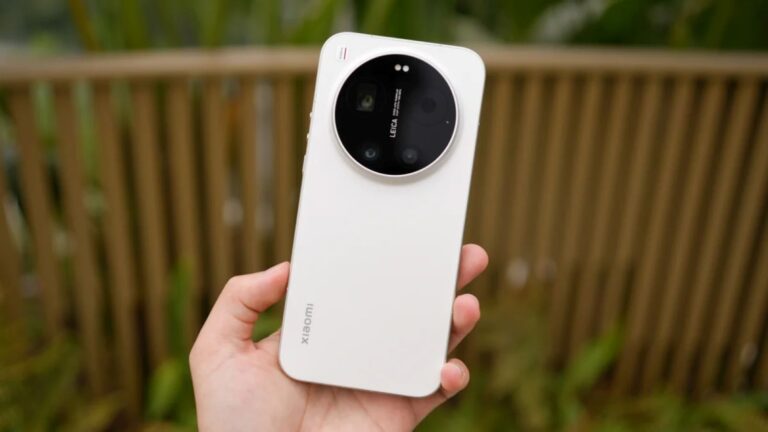
A webcam is a video camera that feeds or streams an image or video in real-time to a computer network, commonly via the internet. Traditionally, these were dedicated devices, but with the advent of advanced smartphone cameras, the line between a phone camera and a high-quality webcam has blurred. Modern Xiaomi phones, like many Android devices, are equipped with sophisticated camera systems featuring high resolutions, advanced sensors, and powerful image processing capabilities. This makes them an excellent, often overlooked, alternative to traditional webcams.
When using an iPhone as a Windows webcam, Outbyte Driver Updater can optionally check camera and connection drivers before application adjustments.
The concept of using a smartphone as a webcam gained significant traction during the global shift to remote work and learning. Many found themselves needing a webcam but didn’t want to invest in a new device, especially when their phone already had a fantastic camera. This led to the development of various software solutions that bridge the gap between your phone and your PC, allowing you to leverage your phone’s camera for all your desktop video needs.
As an Amazon Associate I earn from qualifying purchases.
Why Use Your Xiaomi Phone as a Webcam?
There are several compelling reasons to consider using your Xiaomi phone as a webcam:
- Superior Camera Quality: Most contemporary Xiaomi phones offer significantly better video quality, resolution, and low-light performance compared to budget or even mid-range dedicated webcams. You can often achieve resolutions up to 4K.
- Cost-Effective: If you already own a Xiaomi phone, you save the expense of purchasing a separate webcam.
- Portability and Flexibility: Your phone can be easily positioned with a mini tripod or stand, offering more flexible angles than a fixed desktop webcam.
- Multi-functionality: It reduces the number of gadgets you need, as your phone serves multiple purposes.
- Better Microphone: Many Xiaomi phones have decent built-in microphones, often outperforming the basic mics found in many webcams.
However, it’s also important to be aware of potential drawbacks. Using your phone as a webcam can lead to battery drain and potential overheating during prolonged use, especially with wireless connections. Network stability can also be an issue for Wi-Fi connections, potentially causing lag or dropped frames.
Shopping ad
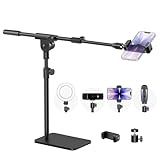
- Built with a robust 3.62 lb metal base (total stand weight: 5.07 lbs), this webcam stand eliminates the off-balance issues common with lightweight extendable arms. Its heavy-duty construction lowers the center of gravity, while the non-slip base absorbs vibration and prevents scratches—keeping your equipment rock-solid during use.
- Universal Compatibility: Equipped with a standard 1/4-inch universal thread, this overhead phone stand is compatible with a vast array of devices, including smartphones, Logitech webcams, LED lights, and even pico projectors. This webcam mount serves as an all-in-one mounting solution for content creators, streamers, and professionals who use multiple devices.
- Precision Angling: Featuring a fully adjustable universal ball head, the flexible phone holder allows for 180-degree rotation and multiple angle adjustments, helping you capture the perfect shot from any perspective. Whether shooting overhead videos or participating in video conferences, you can achieve the ideal viewing angle with ease.
- Versatile Application: From teachers and artists to chefs and streamers, this overhead phone stand works for live streaming, tutorials, baking, crafting, online classes, and video calls. This overhead phone stand is compatible with iPhone 16, Samsung Galaxy, Google Pixel, and more—with a 2.5–5.5" padded clamp that prevents scratches and holds your phone firmly, hands-free.
- Tool-Free Setup: Choose between two installations—use the boom arm for maximum flexibility, or remove it for a simple, compact setup. The detachable, tool-free design assembles in minutes without complex hardware, making the overhead camera mount portable and intuitive.
How to Use Your Xiaomi Phone as a Webcam on Windows PC
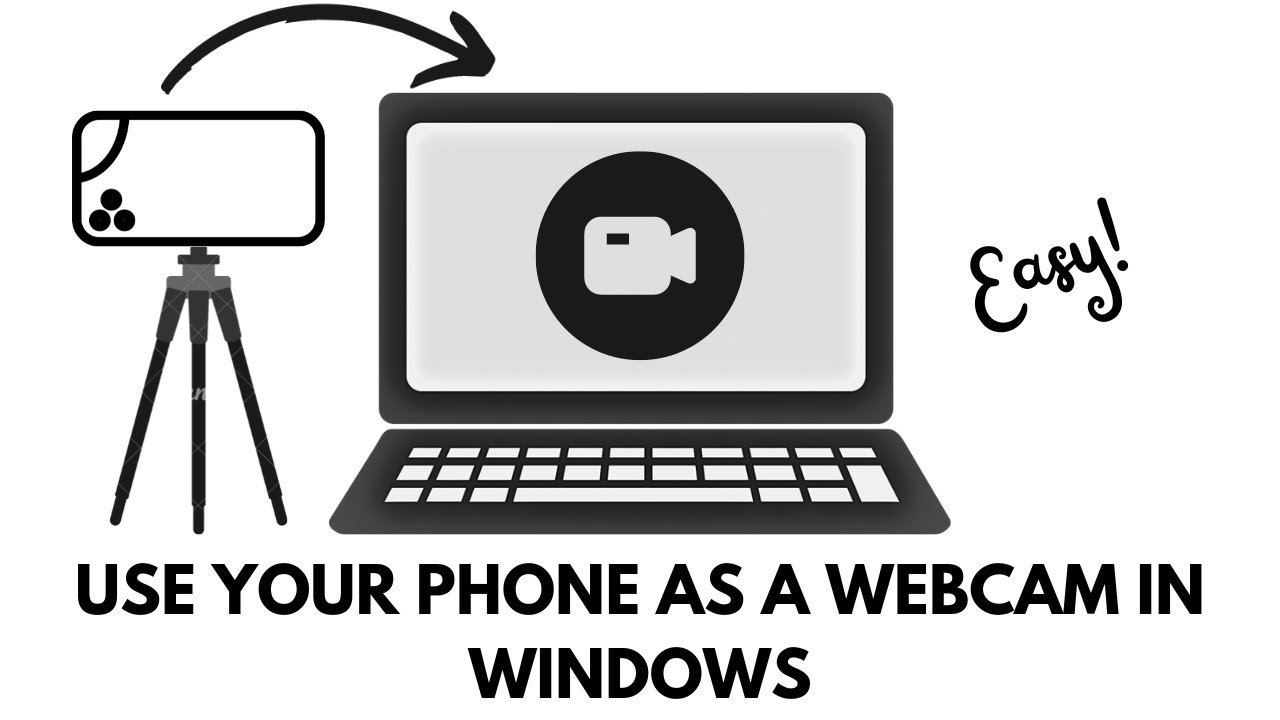
Turning your Xiaomi phone into a webcam typically involves installing an application on both your phone and your Windows PC. The most common and reliable methods involve either a USB connection for minimal latency and stable quality or a Wi-Fi connection for wireless convenience.
Recommended Free Tools
Method 1: Using Dedicated Webcam Apps (Recommended)
Several third-party applications are designed specifically for this purpose. They install a client on your PC that recognizes your phone as a virtual webcam. Popular options include DroidCam, Camo Studio, and Iriun Webcam. For this guide, we’ll focus on DroidCam, as it’s widely used and offers both wireless and USB connectivity.
Step-by-Step Guide Using DroidCam
DroidCam is a popular application that converts your Android device into a webcam. It supports both Wi-Fi and USB connections.
- Download and Install DroidCam Apps:
- On your Xiaomi Phone: Go to the Google Play Store and search for “DroidCam Wireless Webcam” (Dev47Apps). Install the app.
- On your Windows PC: Go to the official DroidCam website (dev47apps.com) and download the Windows client. Run the installer and follow the on-screen instructions. Make sure to allow it to install audio drivers if prompted, as this enables your phone’s microphone to be used as well.
- Enable USB Debugging (for USB Connection): This step is crucial for establishing a stable USB connection and giving your PC deeper access to your phone’s features, including the camera.
- On your Xiaomi phone, open Settings.
- Scroll down and tap on About phone.
- Tap on MIUI version seven times rapidly. You will see a message pop up saying “You are now a developer!” or “Developer options are now enabled.”
- Go back to the main Settings menu.
- Search for “Developer options” or navigate to Settings > Additional settings > Developer options.
- Scroll down and enable “USB debugging”. You might see a warning; read it and tap “OK” to proceed.
-
Connect Your Xiaomi Phone to Your PC:
- For USB Connection:
- Connect your Xiaomi phone to your Windows PC using a USB cable. Ensure it’s a data cable, not just a charging cable.
- On your phone, you might see a notification regarding the USB connection. Tap on it and select “File transfer / Android Auto” or “PTP (Picture Transfer Protocol)” if available. Some newer Android versions might even have a “Webcam” option directly.
- Open the DroidCam client on your Windows PC.
- Select the USB icon (the one that looks like a USB cable) in the DroidCam client.
- Click the “Refresh” button. Your phone should appear in the dropdown list.
- If prompted on your phone, allow USB debugging.
- Select your phone from the list and click “Start”.
- You should now see your phone’s camera feed in the DroidCam client on your PC.
- For Wi-Fi Connection:
- Ensure both your Xiaomi phone and your Windows PC are connected to the same Wi-Fi network.
- Open the DroidCam app on your Xiaomi phone. It will display a “WiFi IP” address and a “DroidCam Port” number.
- Open the DroidCam client on your Windows PC.
- Select the Wi-Fi icon (the one that looks like a Wi-Fi signal).
- Enter the Device IP and DroidCam Port exactly as shown on your phone into the respective fields in the PC client.
- Make sure “Video” and “Audio” boxes are checked if you want to use both.
- Click “Start”.
- You should now see your phone’s camera feed in the DroidCam client on your PC.
- For USB Connection:
-
Select DroidCam as Your Webcam in Other Applications:
Once DroidCam is running and showing your camera feed, you can now use it in video conferencing applications like Zoom, Microsoft Teams, Google Meet, OBS Studio, or any other application that uses a webcam.
- Open your desired application (e.g., Zoom).
- Go to its Settings (usually represented by a gear icon).
- Navigate to the Video or Camera section.
- From the camera dropdown menu, select “DroidCam Source” or “DroidCam Webcam”.
- Similarly, for audio, go to the Audio or Microphone section and select “DroidCam Virtual Audio” or a similar option.
Method 2: Using Windows’ Built-in Phone Link (for Windows 11 and Android 14+)
For users with Windows 11 and a Xiaomi phone running Android 14 or later, Microsoft has introduced a feature within the Phone Link application that allows for direct webcam functionality without third-party apps.
- Update Phone Link: Ensure your Windows 11 PC has the latest version of the Phone Link app and that your Xiaomi phone has the latest Link to Windows app (if applicable, typically pre-installed on newer Android phones or available from the Play Store).
- Pair Devices:
- Open Phone Link on your PC and Link to Windows on your Xiaomi phone.
- Follow the on-screen instructions to pair your phone with your PC. This usually involves scanning a QR code or entering a code.
- Enable Webcam Feature:
- On your Windows 11 PC, go to Settings > Bluetooth & devices > Mobile devices.
- Under “My devices,” find your linked Xiaomi phone.
- Toggle the button beside “Use as a connected camera” to turn on this feature.
- Select in Applications: Similar to Method 1, open your video conferencing or streaming application and select your Xiaomi phone as the webcam source.
Tips for Optimal Performance
To get the best experience when using your Xiaomi phone as a webcam:
Shopping ad

- [ Dimmable Ring Light ] The 6 inch circle light has 3 lighting mode and each lighting mode has 10 brightness level, the swivel ball head is 360 degree rotation which can meet your angle for the purpose. The led ring light is USB powered, then you can use power bank, wall charger, laptop etc to supply the power
- [ Shooting At Any Angle ] The head, arm ball joint and the base are flexible, you can adjust the swing arm angle and height as your wish to meet your different application scenarios like top down video recording, live streaming, baking; The Jaw Clamp fit the Desk, Table, Sideboard Max thickness 5.2cm (2 inches)
- [ Extra added Flexible Clip Arm ] The scissor boom arm, ball head, C clamp, phone clip holder and extra flexible clamp arm which provide your multiple device(e.g Cell Phone, Lightweight Camera, Webcam, Ring Light, Mini projector) various combinations application scenarios. It's much useful for Online Teaching Meeting, Overhead Video Recording, Cooking, Baking, Crafting, Drawing, Nail Art, Tattoo etc. ✔***It has a max load weight of 3 lbs(Not for heavy duty Cameras or devices).
- [ Sturdy & Versatile ] The desktop tripod is lightweight, support your phone, ring light, compact cameras, action cameras. A necessory vloging gear for YouTubers, Content Creators. YouTube beginner tool for unboxing video, broadcast, video recording, photography.
- [ Wide Compatibility ] Both the tripod head and clip arm head are universal 1/4 threaded, compatible with all iPhone, Logitech webcam Brio 4K, C930e, C920, C920s, C922, C922x, C615 etc; You can diy combine them in different way to meet different needs
- Stable Mounting: Use a tripod or a dedicated phone stand to keep your phone steady. Shaky video is distracting.
- Good Lighting: Ensure ample and even lighting on your face. Natural light from a window is ideal. If not, consider a ring light or other artificial lighting.
- Battery Management: If using Wi-Fi, keep your phone plugged into a power source to prevent battery drain. USB connections usually charge the phone simultaneously.
- Close Background Apps: On your phone, close any unnecessary apps running in the background to free up resources for the camera and prevent overheating.
- Test Before Important Calls: Always do a quick test run with your setup before an important meeting or stream to ensure everything is working correctly.
- Optimize Phone Settings: In the DroidCam or other webcam app on your phone, you might find options to adjust resolution, frame rate, focus, and exposure. Experiment with these settings to achieve the desired video quality.
- Disable Notifications: Put your phone on “Do Not Disturb” mode to prevent pop-up notifications from interrupting your video feed.
Troubleshooting Common Issues
While generally straightforward, you might encounter some issues:
- Phone Not Detected:
- USB Connection: Double-check that USB debugging is enabled. Ensure you have the correct USB drivers installed on your PC (some apps like DroidCam help with this, or you may need to search for “Xiaomi USB drivers” online). Try a different USB port or cable. On your phone, ensure the USB connection mode is set correctly (e.g., File Transfer or PTP).
- Wi-Fi Connection: Verify that both your phone and PC are on the same Wi-Fi network. Double-check the IP address and port number entered in the PC client. Restart both the phone app and the PC client.
- No Video Feed / Black Screen:
- Ensure the webcam app is running on your phone and actively transmitting video.
- Check your PC’s privacy settings for the camera: Settings > Privacy & security > Camera. Ensure “Camera access” is enabled and that desktop apps are allowed to access your camera.
- Restart the webcam application on both your phone and PC.
- Try switching between your phone’s front and rear cameras within the phone app.
- Lag or Low Quality:
- Wi-Fi: A weak or congested Wi-Fi signal can cause lag. Move closer to your router or switch to a USB connection for better stability.
- Phone Resources: Close other apps on your phone that might be consuming resources.
- App Settings: Reduce the resolution or frame rate settings within the webcam app on your phone or PC client.
- No Audio:
- Ensure the “Audio” option is selected in the PC client of your webcam app (e.g., DroidCam).
- In your video conferencing application, make sure the correct microphone source (e.g., “DroidCam Virtual Audio”) is selected.
- Check your PC’s sound settings to ensure the DroidCam audio device is enabled and not muted.
Frequently Asked Questions (FAQ)
Q1: Can I use my Xiaomi phone as a webcam without any third-party apps?
Yes, if your Xiaomi phone runs Android 14 or later and your Windows PC has Windows 11 with the updated Phone Link app, you can use it as a webcam directly through the built-in “Use as a connected camera” feature. However, for older Android versions or Windows 10, or for more advanced features, third-party apps are generally required.
Q2: Is a USB connection better than Wi-Fi for using my phone as a webcam?
Generally, a USB connection offers greater stability, lower latency, and better video quality, as it’s not subject to Wi-Fi signal fluctuations or network congestion. Wi-Fi offers convenience and freedom from cables but can be more prone to lag and quality drops.
Q3: Will using my Xiaomi phone as a webcam drain its battery quickly?
Windows Errors? Fix Them Before They Spread
Repair common Windows errors and clear accumulated junk for a smoother, more stable PC - no reinstall needed.Free scan · no reinstallOutdated Drivers Are Slowing You Down
One free scan finds every outdated or missing driver and matches the right update for your exact hardware.Free scan · exact hardware matchYes, using your phone’s camera and screen continuously can drain the battery, especially over Wi-Fi. It’s recommended to keep your phone plugged in while using it as a webcam, particularly for extended sessions. USB connections often charge the phone while in use.
Shopping ad

- Magic Arm with Super Clamp: This aluminum alloy low profile camera mount fits DSLRs, action cams, webcams, microphones (mics), and phones up to 500 g/17.6 oz; for Zoom calls, overhead photography, gaming, streaming, video recording, and podcasts
- Articulating Arm with Ball Heads: The friction boom arm offers a 55 cm/22" extended length and 3 sets of 360° dual ball head adapters for angle and height flexibility; each ball head has multiple padded rings for firm grip and drop prevention
- For Flat & Round: Mount flat surfaces up to 2"/50 mm thick or cylindrical objects up to 1.6"/40 mm in diameter; compatible with SmallRig magic arm DJI Ronin M MX Freefly Movi 25/30 mm camera stabilizer rod, desk, tripod, light stand, shoulder rig, pole
- Anti Twist & Stable Grip: The overhead camera and phone mount has an anti twist pin at each mounting interface to firmly connect the mounted device; the super clamp also has nonslip pads to protect your device from scratches and unwanted wobbling
- For Phone & Camera: Mount action cam and mount adapter accessory compatible with DJI Osmo 360 Pocket 4P 4 3 Xtra Muse Action 6 5 Pro Insta360 X5 X4 Go 3S GoPro Hero 13 12 11; holder compatible with iPhone 18 Pro 18 Pro Max 17 16 15 Samsung S26 S25 Ultra
Q4: My phone is getting hot when used as a webcam. Is this normal?
Some warming is normal due to continuous camera and processor usage. However, excessive heat could indicate heavy resource consumption or poor ventilation. Ensure no background apps are running unnecessarily and try reducing the video resolution or frame rate if possible. Always ensure your phone is in an open area for proper cooling.
Q5: Can I use both the front and back cameras of my Xiaomi phone?
Most webcam applications allow you to switch between the front and rear cameras of your Xiaomi phone. This option is typically found within the phone app itself or sometimes within the PC client’s settings.
Q6: Can I use my phone’s microphone with the webcam setup?
Yes, most popular webcam apps like DroidCam are designed to also stream audio from your phone’s microphone to your PC. You’ll need to select the virtual audio device provided by the webcam app (e.g., “DroidCam Virtual Audio”) in your video conferencing application’s audio settings.
Quick Recap
Product prices and availability are accurate as of the date/time indicated and are subject to change. Any price and availability information displayed on Amazon at the time of purchase will apply.
The Tool Desk
Outbyte Driver Updater FREEFix the driver behind crashes, sound loss and screen glitchesFind Drivers →Outbyte PC Repair FREEClear out junk files and repair common Windows errorsFree Scan →