The Tool Desk
Outbyte Driver Updater FREEScan for outdated or missing drivers - takes under a minuteDriver Scan →Outbyte PC Repair FREERepair Windows errors before they cause bigger problemsFix Now →Everything Xiaomi is reader-supported. When you buy through links on our site, we may earn an affiliate commission. As an Amazon Associate I earn from qualifying purchases. Learn more
Formatting your Xiaomi device often brings to mind a complete wipe, leading to concerns about data loss. However, there are several methods to “format” or refresh your Xiaomi phone without erasing your precious photos, contacts, apps, and other essential files. This guide will walk you through various approaches, from simple clean-ups to more involved system refreshes, all while prioritizing the safety of your data.
Before we dive in, let’s clarify what “formatting” means in the context of a smartphone. Typically, formatting refers to erasing all data from a storage device and preparing it for new data. On a smartphone, this usually translates to a factory reset, which deletes all user data and settings, returning the device to its out-of-the-box state. However, our focus here is on achieving a performance boost or addressing software glitches without this drastic step.
As an Amazon Associate I earn from qualifying purchases.
Free tools Windows power users keep installed
One-click scans. No signup required.
Understanding Your Xiaomi Device’s Storage
Xiaomi devices, like other Android smartphones, have internal storage divided into several partitions. The user data partition is where your photos, videos, apps, and documents reside. When you perform a factory reset, this partition is wiped. Our goal is to avoid this by using built-in tools and smart management techniques.
Why You Might Want to “Format” Without Data Loss
Shopping ad

- USA MARKET ONLY WORK ON TMOBILE BOOST MINT TELLO OR ANY UNDER TMOBILE NETWORK PHONE NEEDS A SIM CARD ALREADY ACTIVATED ,OUTSIDE USA WORKS ANY GSM CARRIER SIM GSM FCC ID: 2AFZZPC0AG
- Dual SIM (nano SIM + nano SIM or nano SIM + eSIM) (NO MICRO SD) 5G: 5G SA: n1/2/3/5/7/8/20/26/28/38/40/41/66*(70M)//77/78/485G NSA: n1/3/5/7/8/20/28/38/40/41/66*(70M)/77/784G LTE TDD: B38/40/41/42/484G LTE FDD: B1/2/3/4/5/7/8/18/19/20/26/28/66*(70M)/713G WCDMA: 1/2/4/5/6/8/192G GSM: 2/3/5/8Supports 4x4 MIMO*5G SA/NSA N66(70M) and 4G B66(70M): UL 1710MHz~1780MHz, DL 2110MHz~2180MHz*5G connectivity may vary based on region availability and local operator support.
- 6.83" 1.5K 120Hz ultra-bright AMOLED displayResolution: 2772 x 1280Contrast ratio: 8,000,000:1Refresh rate: Up to 120Hz*Refresh rate can be adjusted to up to 120Hz for supported apps.Peak brightness: 3500 nits covering 25% display areaHBM brightness: 2000 nitsTypical brightness: 800 n: 2560Hz*480Hz touch sampling rate is activated under Game Turbo Mode.*2560Hz instant touch sampling rate is activated under Game Turbo Mode.12-bit color depth, 68 billion colorsDCI-P3 wide display 2.0HDR10+TÜV Rheinland Low Blue Light (Hardware Solution) CertifiedTÜV Rheinland Flicker Free CertifiedTÜV Rheinland Circadian Friendly CertifiedDolby VisionCorning Gorilla Glass 7i
- MediaTek Dimensity 9500s3nm manufacturing process1 x Cortex-X925, up to 3.73GHz3 x Cortex-X4, up to 3.3GHz4 x Cortex-A720, up to 2.4GHzImmortalis-G925 MC11NPU 890 - 8500mAh (typ)100W HyperChargeUSB Type-C charging portUp to 27W reverse chargingSupports PD3.0/PD2.0Smart charging
- Wi-Fi Protocol: Wi-Fi 7/ Wi-Fi 6/ Wi-Fi 5/ Wi-Fi 4 and 802.11a/b/g*Wi-Fi 7/Wi-Fi 6 capability may vary based on regional availability and local network support. Wi-Fi connectivity (including Wi-Fi frequency bands, Wi-Fi standards and other features as ratified in IEEE Standard 802.11 specifications) may vary based on regional availability and local network support. The function may be added via OTA when and where applicable.WLAN frequency: 2.4G Wi-Fi | 5G Wi-FiSupports Multi-Link Operation, 2x2 MIMO, 8x8 Sounding for MU-MIMO, Wi-Fi Direct, MiracastBluetooth 6.0, Dual-BluetoothSupports SBC / AAC / LDAC / LHDC 5.0 / LC3 / ASHA / AuracastNFC
Users often seek to “format” their Xiaomi device for various reasons, including:
- Slow Performance: Over time, accumulated cache, temporary files, and numerous apps can bog down your phone.
- Storage Full: Running out of storage can severely impact performance and prevent you from taking new photos or installing apps.
- App Crashes and Glitches: Corrupted app data or system files can lead to instability.
- Preparing for Sale (without full wipe): If you’re giving the phone to a family member, you might want a clean slate for them without fully deleting everything if you still intend to use some of the data later. (Note: A full wipe is recommended for selling to a stranger).
- General System Refresh: Sometimes, a clean-up just makes the phone feel snappier.
Method 1: Clearing Cache and Temporary Files
This is the least intrusive and often most effective way to address performance issues without any risk of data loss. Your cache is a collection of temporary data stored by apps and the system to speed up access to frequently used information. Over time, this cache can grow significantly and even become corrupted, leading to slowdowns.
How to Clear Cache from Individual Apps:
- Go to Settings on your Xiaomi device.
- Tap on Apps (or “Manage apps” / “App management”).
- Select Manage apps.
- Choose the app you want to clear the cache for (e.g., Gallery, Chrome, Facebook).
- Tap on Storage.
- You will see options for “Clear data” and “Clear cache.” Crucially, tap only on Clear cache. Clearing data will remove all user data associated with that app, including logins and settings.
How to Clear System Cache (via Recovery Mode):
Clearing the system-wide cache partition can resolve deeper performance issues without touching your personal data.
- Power off your Xiaomi phone completely.
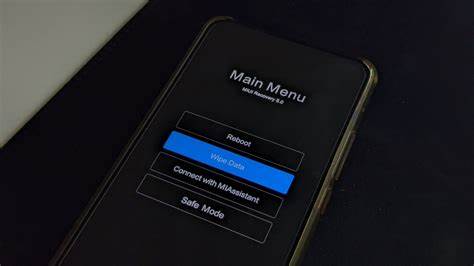
- Press and hold the Volume Up button and the Power button simultaneously until you see the Mi logo appear. This will boot your device into Recovery Mode.
- Use the Volume buttons to navigate to “Wipe Data.”
- Press the Power button to select it.
- Navigate to “Wipe Cache Partition” (or similar wording, it might be “Wipe cache”).
- Press the Power button to confirm.
- Once done, select “Reboot system now” and press the Power button.
Historical Context: Android’s recovery mode has been a fundamental part of the operating system since its early days, providing a low-level environment for system maintenance like flashing updates and wiping cache partitions, a feature vital for troubleshooting without resorting to a full data wipe.
Method 2: Utilizing Xiaomi’s Built-in Cleaner and Security App
Xiaomi’s MIUI (MI User Interface), its custom Android skin, comes with a powerful Security app that includes a cleaner tool. This tool identifies and helps you remove junk files, old app installers, duplicate photos, and large files.
- Open the Security app on your home screen.
- Tap on Cleaner.
- The app will scan your device for junk files.
- Once the scan is complete, review the categories (e.g., Cache, Residual files, Obsolete files).
- Tap Clean up to remove the selected junk files. This process is generally safe and does not delete your personal data.
Expert Insight: The Security app also offers other useful features like “Deep clean” which helps you identify large files, unused apps, and duplicate photos for manual deletion. This gives you more control over what gets removed.
Method 3: Uninstalling Unused Apps and Managing Storage
Bloated storage due to a multitude of installed apps is a common reason for slowdowns. Regularly uninstalling apps you no longer use can free up significant space.
How to Uninstall Apps:
- Go to Settings > Apps > Manage apps.
- Tap on the app you wish to uninstall.
- Tap Uninstall at the bottom of the screen.
Alternatively, you can often long-press on an app icon on your home screen and drag it to the “Uninstall” option that appears.
Recommended Free Tools
Managing Storage Manually:
- Go to Settings > About phone > Storage.
- Here, you’ll get a detailed breakdown of what’s consuming your storage (Apps, Images, Videos, Audio, Documents, etc.).
- Tap on each category to explore and manually delete unnecessary files. For example, in “Images” or “Videos,” you can select and delete items you no longer need. This gives you granular control and ensures you only remove what you intend to.
Method 4: Backing Up and Selective Deletion (The “Semi-Format” Approach)
While the objective is to not lose data, sometimes a truly clean slate for a specific type of data is beneficial. For instance, if your gallery is disorganized, or if you have thousands of old downloaded files you no longer need. In such cases, the strategy is to backup the data you want to keep and then manually delete the rest.
How to Back Up Data:
- Google Photos/Drive: For photos and videos, Google Photos offers automatic backup. For other files, Google Drive is an excellent cloud storage option.
- Mi Cloud: Xiaomi’s own cloud service, Mi Cloud, allows you to back up contacts, messages, gallery items, and even app data.
- Go to Settings > Mi Account > Mi Cloud.
- Enable the items you wish to sync and back up.
- PC Transfer: Connect your Xiaomi phone to a computer using a USB cable. Select “File Transfer” (MTP) mode on your phone. You can then copy photos, videos, and other documents directly to your computer.
- External Storage: If your phone supports an SD card, you can move large files like photos and videos to the SD card.
- Go to File Manager.
- Navigate to the files you want to move.
- Select them and choose “Move” to your SD card.
Once your important data is safely backed up, you can then proceed to selectively delete files or entire folders that are no longer needed from your device’s internal storage. This is like a targeted “format” for specific data categories.
Method 5: Resetting Network Settings (for Connectivity Issues)
What’s actually slowing this PC down?
Pick the symptom - the matching free tool is one click away.
If your “formatting” desire stems from persistent Wi-Fi, Bluetooth, or mobile data issues, resetting network settings can often resolve these without affecting your personal data.
- Go to Settings.
- Search for “Reset Wi-Fi, mobile & Bluetooth” or “Reset network settings”.
- Tap on it and then tap “Reset settings.”
- You may need to enter your phone’s PIN or password.
This action will reset all network configurations, including saved Wi-Fi passwords, paired Bluetooth devices, and mobile data settings. You will need to reconnect to Wi-Fi networks and re-pair Bluetooth devices afterward, but your personal data remains untouched.
Shopping ad

- International Model - No Warranty in US. USA ONLY COMPATIBLE WITH TMOBILE / MINT, TELLO GLOBAL VERSION . ****** Does NOT Work With Verizon Sprint Boost Metro Pcs At&t Cricket ***** . Unlocked Worldwide . - FCC ID: 2AFZZPNFAG
- Dual Nano sim 5G + eSIM (No micro SD support): 5G: Supports NSA + SA5G: 5G SA: 1/2/3/5/7/8/12/20/25/26/28/38/40/41/48/66/75/77/78 5G NSA: n1/3/5/7/8/20/28/38/40/41/66/75/77/78: 4G: LTE FDD: B1/2/3/4/5/7/8/12/13/17/18/19/20/25/26/28/32/66/71 4G: LTE TDD: B38/39/40/41/42/48: 3G: UMTS: B1/2/4/5/6/8/192G: GSM: B2/3/5/8 Supports 4x4 MIMO
- Leica Summilux optical lensVARIO-SUMMILUX 1:1.67-3.0/15-115 ASPH.Leica 23mm main camera50MPLight Fusion 9502.4μm 4-in-1 Super Pixelf/1.67OIS23mm equivalent focal lengthLeica 115mm periscope telephoto50MPf/3.0OIS115mm equivalent focal lengthLeica 15mm ultra-wide camera12MPf/2.215mm equivalent focal length120º FOV Rear camera video recording8K (7680 x 4320) video recording at 30fps4K video recording at 120fps p (190+ (1280 x 720) video recording at 30fpsLog video recording up to 4K at 30fps, 60fpsSlow-motion video recording:- 720p at 120fps, 240fps, 480fps, 960fps, 1920fpootSteady
- 6.83" 144Hz eye-care AMOLED displayCorning Gorilla Glass 7iResolution: 1.5K, 2772 x 1280, 447 PPIRefresh rate: Up to 144Hz refresh rate*Touch sampling rate: Up to 480Hz, 3500Hz instantaneous*Color gamut: 100% DCI-P3Color depth: 12bit, 68 billion colorsBrightness: 600 (typ), 2000 (HBM)Peak brightness: 3500nits (UHBM) @APL25 dimmingOriginal color PRO | Pro HDR | Wet Touch Technology 2.0 | Xiaomi Vision Care*HDR10+, Dolby VisionTÜV Rheinland Low Blue Light (Hardware Solution) CertifiedTÜV Rheinland Flicker Free CertifiedTÜV Rheinland Circadian Friendly CertifiedTÜV Rheinland Intelligent Eye Care Certified
- MediaTek Dimensity 95003nm processCPU:1 x C1-Ultra, up to 4.21GHz3 x C1-Premium, up to 3.5GHz4 x C1-Pro, up to 2.7GHzGPU: Mali G1-UltraAI: NPU 990
What About “Wipe Data” in Recovery Mode?
It’s crucial to distinguish. In Recovery Mode, the “Wipe Data” option does perform a factory reset and will erase all user data. This is typically what people mean by “formatting” a phone completely. Do not select this option if your goal is to avoid data loss. The only safe “wipe” in Recovery Mode for data preservation is “Wipe Cache Partition.”
The Importance of Regular Backups
While this guide focuses on avoiding data loss during a “format,” the best defense against any unforeseen data loss (due to hardware failure, accidental deletion, or actual factory reset) is regular backups. Make it a habit to back up your critical data to cloud services or an external drive. This practice gives you peace of mind and makes any future “formatting” or device changes much less stressful.
Conclusion
Formatting a Xiaomi device without losing data isn’t about performing a traditional “format” but rather about smart cleaning, optimization, and targeted data management. By regularly clearing cache, utilizing the built-in cleaner, managing your apps and storage, and selectively backing up and deleting files, you can maintain your phone’s performance and free up space without the fear of losing your valuable information. Remember, a factory reset is always the last resort when all other troubleshooting steps fail, and it should only be performed after a complete and verified backup.
FAQ
Q1: Can I “format” my Xiaomi phone without losing my photos and videos?
Yes, absolutely. “Formatting” without losing photos and videos usually refers to clearing cache, removing junk files, or selectively deleting items after backing them up. A factory reset is the only method that deletes all photos and videos, but this guide provides alternatives.
Q2: What is the safest way to clean my Xiaomi phone without deleting my apps?
Quick wins for a faster PC:
Repair Windows errors before they cause bigger problemsFix Now →Fix the driver behind crashes, sound loss and screen glitchesFind Drivers →The safest ways are clearing the cache for individual apps and the system cache via recovery mode, and using the built-in Security app’s Cleaner function. These actions optimize performance without uninstalling apps or deleting their user data (unless you specifically choose “Clear data” for an app, which is different from “Clear cache”).
Q3: Will clearing the system cache delete my personal data on my Xiaomi device?
No, clearing the system cache partition in recovery mode does not delete your personal data (photos, videos, apps, contacts). It only removes temporary system files that can sometimes cause performance issues.
Q4: My Xiaomi phone is very slow. What’s the first thing I should try without losing data?
Do these 3 things before closing this tab:
1Repair Windows errors before they cause bigger problems2Scan for outdated or missing drivers - takes under a minute3Clear out junk files and repair common Windows errorsThe very first thing you should try is using the Security app’s Cleaner to remove junk files and then manually clear the cache for frequently used apps. This often provides an immediate performance boost.
Q5: How often should I “clean” my Xiaomi phone to maintain its performance?
A5: It’s good practice to run the Cleaner tool in the Security app once a month. Clearing individual app caches can be done as needed, especially if a particular app is misbehaving. Regularly uninstalling unused apps also contributes significantly to maintaining performance.
Q6: Is it safe to use third-party cleaner apps on my Xiaomi phone?
Windows Errors? Fix Them Before They Spread
Repair common Windows errors and clear accumulated junk for a smoother, more stable PC - no reinstall needed.Free scan · no reinstallOutdated Drivers Are Slowing You Down
One free scan finds every outdated or missing driver and matches the right update for your exact hardware.Free scan · exact hardware matchA6: While many third-party cleaner apps exist, it’s generally recommended to stick with Xiaomi’s built-in Security app for cleaning and optimization. Third-party apps can sometimes be aggressive, consume more resources, or even contain adware. The native tools are designed specifically for MIUI and are often more efficient and safer.
Quick Recap
Product prices and availability are accurate as of the date/time indicated and are subject to change. Any price and availability information displayed on Amazon at the time of purchase will apply.
Independent reader supportYour contribution helps us test, update, and keep practical guides available for everyone.