Free tools Windows power users keep installed
One-click scans. No signup required.
Everything Xiaomi is reader-supported. When you buy through links on our site, we may earn an affiliate commission. As an Amazon Associate I earn from qualifying purchases. Learn more
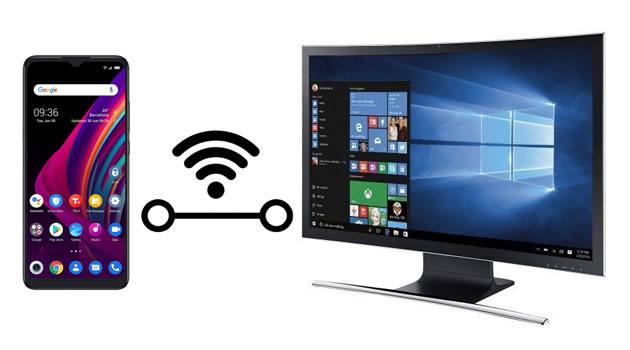
Connecting your Xiaomi phone to a Windows PC is a fundamental task for many users. Whether you need to transfer photos and videos, manage files, install applications, perform debugging, or even mirror your phone’s screen, establishing a reliable connection is key. While it might seem straightforward, users sometimes encounter minor hurdles due to driver issues, incorrect settings, or software preferences.
Xiaomi, a global technology giant, designs its MIUI (Xiaomi User Interface, now often referred to simply as HyperOS on newer devices) operating system, which is built on Android, to offer various connectivity options. The evolution of smartphone-to-PC connectivity has moved from simple USB mass storage to more sophisticated protocols like MTP (Media Transfer Protocol) and even wireless solutions. Understanding these methods ensures a smooth and efficient workflow between your Xiaomi device and your Windows computer. This guide will cover the most common and effective ways to connect your Xiaomi phone to your Windows PC, addressing potential issues along the way.
As an Amazon Associate I earn from qualifying purchases.
Method 1: Connecting via USB Cable (Most Common for File Transfer)
Connecting your Xiaomi phone via a USB cable is the most common and often the fastest way to transfer files.
Step 1: Gather Your Equipment
- Xiaomi Phone: Ensure your phone is charged sufficiently.
- USB Cable: Use a high-quality USB cable. Ideally, use the original cable that came with your Xiaomi phone as it’s designed for optimal performance. Ensure it’s the correct type (USB-A to USB-C or USB-A to Micro-USB, depending on your phone model and PC ports).
- Windows PC: A desktop or laptop running Windows 7, 8, 10, or 11.
Step 2: Connect the Phone to the PC
- Plug in the Cable: Connect one end of the USB cable to your Xiaomi phone’s charging port and the other end to an available USB port on your Windows PC.
Step 3: Select USB Connection Mode on Your Phone
Immediately after connecting, your Xiaomi phone will usually display a notification regarding the USB connection.
Shopping ad

- Durable Design: Reinforced nylon exterior and a robust core ensure this cable withstands up to 5,000 bends, outlasting other brands
- Fast Charging: Supports Power Delivery for up to 60W high-speed charging when paired with a USB-C charger
- Versatile Compatibility: Works with virtually all USB-C devices, including phones, tablets, and laptops
- High-Speed Data Transfer: Transfer files quickly with 480Mbps data transfer speeds
- Included Accessories: Comes with a hook-and-loop cable tie for easy organization and a welcome guide for hassle-free setup
- Tap the Notification: Pull down the notification shade from the top of your phone screen. You will see a notification like “USB charging this device” or “USB for file transfer.” Tap on it.
- Choose “File Transfer” (MTP): From the options presented, select “File transfer” (also known as MTP – Media Transfer Protocol). Other common options include “No data transfer” (charging only), “PTP” (Photo Transfer Protocol), or “MIDI.” For general file management, “File transfer” is essential.
- Note: If you don’t see this notification, or if you need to change it later:
- Go to Settings on your phone.
- Search for “USB preferences” or “USB connection.”
- Alternatively, navigate to Settings > Connection & sharing > USB preferences (exact path may vary slightly by MIUI/HyperOS version).
- Select “File transfer”.
- Note: If you don’t see this notification, or if you need to change it later:
Step 4: Access Your Phone’s Storage on the PC
- Open File Explorer: On your Windows PC, open File Explorer (you can usually do this by clicking the yellow folder icon on the taskbar or pressing Windows key + E).
- Locate Your Device: In the left-hand pane of File Explorer, under “This PC” or “My Computer,” you should see your Xiaomi phone listed, often by its model name (e.g., “POCO F5” or “Redmi Note 12 Pro”).
- Browse Files: Double-click on your phone’s icon. You will typically see “Internal shared storage” or “Internal storage.” Double-click this to access your phone’s files and folders (e.g., DCIM for photos, Downloads, etc.).
- Transfer Files: You can now drag and drop files between your phone’s storage and your PC, just like with a USB drive.
Method 2: Connecting Wirelessly (Wi-Fi)
For convenience, especially for quick file transfers or when a USB cable isn’t handy, wireless connection methods are invaluable.
Option A: Using “ShareMe” (formerly Mi Drop)
ShareMe is a pre-installed Xiaomi app (or available on the Play Store) designed for fast file sharing between devices, including PCs.
- Install ShareMe on PC (Optional but Recommended): While not strictly necessary for file transfer, having a companion app or using a browser is possible. For full integration, you might look for PC versions of Xiaomi’s sharing tools or use built-in Windows features (see Option B).
- Open ShareMe on Phone: On your Xiaomi phone, open the ShareMe app.
- Tap “Connect to computer”: In the ShareMe app, look for an option like “Connect to computer” or “Webshare.”
- Select Connection Type: Choose between “Portable” (often uses an FTP server with a random password) or “Password protected” (you set a password). For security, “Password protected” is recommended.
- Note the FTP Address: Your phone will display an FTP address (e.g., ftp://192.168.1.5:8080).
- Access on PC:
- Open File Explorer on your Windows PC.
- In the address bar at the top, type the FTP address exactly as it appears on your phone and press Enter.
- If prompted, enter the username (usually “anonymous” or blank) and the password displayed on your phone.
- Browse and Transfer: You can now browse your phone’s files within File Explorer and drag/drop files wirelessly.
Option B: Using “Link to Windows” / “Phone Link” (Microsoft’s Solution)
For deeper integration, including notifications, messages, calls, and screen mirroring, Microsoft’s Phone Link app (formerly Your Phone) is an excellent choice. Xiaomi phones support this.
Shopping ad

- Fast Charging and Data Sync: etguuds USB A to USB C cable supports charging speed up to 3 A fast charging for quick usb-c port device charging and data transfer speeds up to 480 Mb/s, usbc cable support USB 2.0 data transfer
- Long-Lasting: The usb c charger cord uses integral seamless stretch process, high pressure resistance and nylon braided adding tangle-free, can bear 20000+ bending lifespan
- Wide Compatibility: USB Type C cable fast charging for most C -port devices, for Samsung Galaxy S26 S26+ S26 Ultra S25 S25+ S25 Ultra S24 S24+ S24 Ultra S23 S22 S21 S20 A53 A14, for LG, for Moto, for Pixel, for iPhone 18 17 16 15 Pro Max. Not compatible with iPhone older models before iPhone 15
- Friendly Tips: The USB A to C cable is not support video and media display. Not compatible with webcams, some gaming devices, laptops. Fast charging requires that your device supports fast charging and wall charger supports fast charging
- What You Get: You will get 2 pack 3 ft etguuds Gray usb-a to usb-c nylon braided charging cable
- On Your Windows PC:
- Open the Phone Link app (search for it in the Start menu).
- Select “Android” as your phone type.
- Follow the on-screen instructions to set up the connection. You’ll be prompted to go to your phone.
- On Your Xiaomi Phone:
- Most Xiaomi phones come with the “Link to Windows” feature built-in (often found in Settings > Connection & sharing or by searching in Settings).
- Open the “Link to Windows” feature.
- Scan the QR code displayed on your PC, or manually pair using a code.
- Grant the necessary permissions (notifications, messages, calls, media access).
- Confirm Connection: Once connected, your Xiaomi phone will appear in the Phone Link app on your PC, allowing you to manage various phone functions from your computer.
Method 3: Using Xiaomi PC Suite (Older Method / Specific Use Cases)
Xiaomi PC Suite was Xiaomi’s official desktop client for managing Xiaomi phones. While its active development and broad compatibility with newer MIUI/HyperOS versions have become less consistent (especially compared to universal Android file transfer or Microsoft’s Phone Link), some users might still find it useful for specific older devices or niche functions.
- Download & Install: Search online for “Xiaomi PC Suite” or “Mi PC Suite.” Download the installer from a reputable source (ideally Xiaomi’s official website if still available).
- Install on PC: Run the installer and follow the on-screen prompts to install the software on your Windows PC.
- Connect Phone: Connect your Xiaomi phone to the PC via USB.
- Enable USB Debugging (if required): For some advanced features of PC Suite, you might need to enable USB Debugging on your phone.
- Go to Settings > About phone.
- Tap on “MIUI version” (or “HyperOS version”) repeatedly (7-10 times) until “You are now a developer!” appears.
- Go back to Settings, then Additional settings > Developer options.
- Toggle “USB debugging” to On. Confirm any prompts.
- Launch PC Suite: Open the Xiaomi PC Suite application on your PC. It should detect your connected phone.
- Manage Phone: You can then use the PC Suite interface to manage contacts, messages, apps, backups, and more.
Troubleshooting Common Connection Issues
- “Device not recognized” or “Driver issue”:
- Check USB Cable: Try a different USB cable, preferably the original one.
- Try Different USB Port: Plug into a different USB port on your PC.
- Restart Both Devices: Restart your Xiaomi phone and your Windows PC.
- Update Drivers: In Windows Device Manager (search for “Device Manager” in Start), look for your Xiaomi device or “Android Device.” Right-click and choose “Update driver.” Sometimes installing ADB (Android Debug Bridge) drivers can help. Search for “Universal ADB Driver” online.
- Phone only charging, no file transfer option:
- Ensure you’ve selected “File transfer” (MTP) from the USB notification on your phone.
- Check your phone’s default USB configuration in Settings > Connection & sharing > USB preferences.
- “Could not connect via Wi-Fi” (ShareMe/FTP):
- Ensure both your phone and PC are connected to the same Wi-Fi network.
- Check for firewall restrictions on your Windows PC that might be blocking FTP connections.
- Double-check the FTP address and password.
- Phone Link app issues:
- Ensure “Link to Windows” is enabled on your Xiaomi phone.
- Check for updates for both the Phone Link app on your PC and the Link to Windows feature on your phone.
- Unlink and re-link the devices.
Conclusion
Connecting your Xiaomi phone to a Windows PC is a versatile process with multiple effective methods. For simple and fast file transfer, a direct USB connection with the MTP mode selected remains the most reliable. For wireless convenience and integrated features like notifications and screen mirroring, Microsoft’s Phone Link app offers a robust solution. While Xiaomi PC Suite serves specific older use cases, the native Android and Windows functionalities, combined with apps like ShareMe, provide ample options for seamless data management and interaction between your Xiaomi device and your Windows computer. Mastering these connection techniques will significantly enhance your mobile experience.
FAQ
Q1: What is MTP, and why is it important for connecting my Xiaomi phone?
MTP stands for Media Transfer Protocol. It’s the standard protocol used by Android phones, including Xiaomi devices, to allow a Windows PC to access and transfer media files (photos, videos, music) and other data stored on the phone’s internal storage or SD card. It allows the PC to see the phone as a media device rather than a simple storage drive, providing more stable and secure access.
Shopping ad

- 5 Pack 6FT Charging Cords: Includes five 6-foot cords for home, office, car, travel, bedside, and backup use.
- 3A Fast Charging and Sync: Supports up to 3A charging and 480Mbps data transfer with compatible devices and USB A adapters.
- Braided for Daily Use: Nylon braided material helps resist bending, pulling, and tangling for everyday charging needs.
- Wide Type C Compatibility: Compatible with iPhone 17 16 15 series, Samsung Galaxy S10 S9 S8, Note 10 9 8, LG V50 V40 G8 G7, and other Type C devices.
- USB A to Type C Connection: Works with standard USB A wall chargers, car chargers, power banks, laptops, and charging stations.
Q2: My PC isn’t recognizing my Xiaomi phone when connected via USB. What should I do?
First, ensure you’ve selected “File transfer (MTP)” from the USB connection notification on your Xiaomi phone. If that doesn’t work, try these steps:
What’s actually slowing this PC down?
Pick the symptom - the matching free tool is one click away.
- Use a different USB cable (the original one is best).
- Try a different USB port on your PC.
- Restart both your phone and your PC.
- Check Device Manager on your PC for any driver issues (look for “Android Device” or your phone model with a yellow exclamation mark). You might need to manually update or install ADB drivers.
Q3: Can I mirror my Xiaomi phone screen to my Windows PC?
Yes! The most reliable way to mirror your Xiaomi phone screen to a Windows PC is by using Microsoft’s Phone Link app (formerly “Your Phone”). Ensure your Xiaomi phone has the “Link to Windows” feature enabled (often found in Settings > Connection & sharing) and follow the setup instructions in the Phone Link app on your PC. Other third-party screen mirroring apps are also available.
Shopping ad
![INIU 240W USB C to USB C Cable, [6.6ft+6.6ft] Fast Charging Type C Cord | Nylon Braided, Fast Charging, LED Indicator, USB-C Data Transfer, for iPhone 18 17 16 Pro, MacBook Pro, iPad, Samsung S26 etc](https://m.media-amazon.com/images/I/41r3DXOHFvL._SL160_.jpg)
- [From INIU—the SAFE Fast Charge Pro] Experience the safest charging with over 38 million global users. At INIU, we use only the highest-grade materials, so we do have the confidence to provide an industry-leading 3-year iNiu Care.
- [Unleash 240W High-Speed Charging] Experience peak efficiency with the INIU 240W USB-C cable. Designed to handle power-hungry devices, it rapidly boosts your MacBook Pro 16" from 20% to 67% in just 30 minutes.
- [Fastest Charging for All Devices] Set new charging records with the world’s fastest 240W cable. Rapidly boost your iPhone 17 Pro Max from 20% to 75%, Galaxy 25 Ultra to 77%, and iPad Pro 11" to 64% in only 30 minutes. (Note: Requires a compatible 240W USB-C charger).
- [Fit for All C-Port Devices] Work flawlessly with all existing C-port devices from big to small(240/200/170/140/100/60/18W required)—Laptops, Phones, Tablets, STEAM DECK and Switch, no matter what device you want to charge, it can be done more efficiently.
- [Safe Charge with EMARK2.0] INIU's proprietary EMARK2.0 safeguards you and your devices by dynamically over-charge protection and monitoring temp over 3.2 million times daily—saving you and your connected devices from the threat of fire and battery damage.
Q4: Do I need to install any special drivers for my Xiaomi phone on my Windows PC?
Generally, for basic file transfer (MTP), modern Windows PCs (Windows 10/11) will automatically install the necessary universal Android drivers when you connect your Xiaomi phone. However, if you encounter “device not recognized” issues, or if you plan to do advanced tasks like flashing ROMs or rooting, you might need to manually install Xiaomi ADB drivers or a universal Android driver package.
Quick wins for a faster PC:
Fix the driver behind crashes, sound loss and screen glitchesFind Drivers →Clear out junk files and repair common Windows errorsFree Scan →Scan for outdated or missing drivers - takes under a minuteDriver Scan →Q5: What is “Developer options” and “USB debugging” on my Xiaomi phone? Are they necessary?
Developer options is a hidden menu on Android phones that provides advanced settings for developers. USB debugging is an option within Developer options that allows your computer to communicate with your phone for purposes like debugging apps, accessing the phone’s shell, or using certain third-party tools (like older versions of Xiaomi PC Suite or ADB commands). For simple file transfer or using the Phone Link app, USB debugging is typically NOT required and should generally remain off for security reasons unless you know why you need it.
Shopping ad

- NOTE:1. PLEASE KINDLY KNOW this CABLE is USB-A TO USB-C CABLE instead of USB-C TO USB-C or Lighting connector. 2. It NOT COMPATIBLE with iPhone 14 Series and earlier versions or other deviices with lightning slot. 3.The thickness of the compatible mobile phone case charging port is 5.5mm.
- INNOVATIVE RIGHT ANGLE DESIGN: Tired of charging cables breaking at the joints? Compared to conventional electronic smartphone charger cord type c, this right angle type c chargers fast charging cable features an ergonomic 90° Right Angle end "L" design that may successfully prevent typical wear, straining cable and connection issues and increase the longevity life of the usb to usbc cable type c charger for Samsung. Its tangle-free ergonomic design makes it easier and more comfortable without blocking your hand to play games, use apps in portrait mode, watch videos, carplay, car charging and read e-books while charging.
- CERTIFIED 3.1A STABLE CHARGING & SYNC SPEED: AINOPE USB Type C Cable supports Stable charging up to 9V/3.1A (40% faster) compared with other cables which provide 5V/2.4A output. And data sync transfer speeds up to 480Mbps (1200 songs synced/minute). *Please note: 1.This cable can charge Google pixel 2/3/3XL normally, but it may not deliver fast charging speed. 2. Using an adapter of at least 5V/3A (QC 18W Max) if charging for full speed. The internal smart NTC smart control chip ensures stable current and prevents overheating for safe, full speed charging.
- ENHANCED DURABILITY & MILITARY GRADE: While others offer 10,000-bend durability, AINOPE sets a new standard with a 400,000+ bending lifespan. Reinforced 90 degree end military-grade durable nylon braided iPhone charging cable fast charger usbc with special SR joint, Lasts 30x longer than ordinary cable-proven in a laboratory environment to withstand 400,000 bends. It built-in laser welding technology with premium aluminum housing, which ensure the metal part won't break. One of the toughest type c charger fast charging type c cord ever created, with tensile strength capable of withstanding 16 kg. It's built to outlast your device, effectively ending the cycle of frequent cable replacements.
- UNIVERSAL COMPATIBILITY: This is the USBA to USBC cable not the USB-C to USB-C cable, Compatible with ALL USB-C iPhones, Android phones and tablets. Compatible with iPhone 17 Pro Max Air iPhone 16 15 Plus Samsung Galaxy S25 Ultra S24 23 S22 S21 S20 S20+ S20 Ultra S10 S10E S9 S8 Note 20 Ultra Note 10 9 8, Moto Z/Z2, LG V60/V40/V30+/V30 Sony XPERIA XZ2/XZ2 Premium/X3,XPERIA 5 II Google Pixel 3/4/5/6/7/8, Pixel 3XL/4XL/5XL, Pixel 6 Pro/7 Pro/8 Pro, Tablets iPad Pro 12.9-inch (5th/4th/3rd generation), iPad Pro 11-inch(4th/3rd/2nd/1st generation),iPad 10 iPad Air 4/5, iPad mini 6 and other android phones.
Q6: Can I transfer files wirelessly without installing any apps on my PC?
Yes. You can use the built-in ShareMe app on your Xiaomi phone’s “Connect to computer” feature. This generates an FTP address that you can simply type into your Windows PC’s File Explorer address bar. Your PC’s native file explorer can then connect to your phone over Wi-Fi without needing a dedicated app installation.
Recommended Free Tools
Q7: Is it safe to leave my Xiaomi phone connected to my PC for extended periods?
For charging, it’s generally safe. For file transfer, it’s fine for the duration of the transfer. However, for security and battery health, it’s a good practice to disconnect your Xiaomi phone from your Windows PC when you are not actively using the connection or transferring files, especially if you have enabled USB Debugging.
Quick Recap
Product prices and availability are accurate as of the date/time indicated and are subject to change. Any price and availability information displayed on Amazon at the time of purchase will apply.