
Figma Dev Mode
Figma Dev Mode is a developer-focused space for inspecting design files and supporting handoff from design to code.
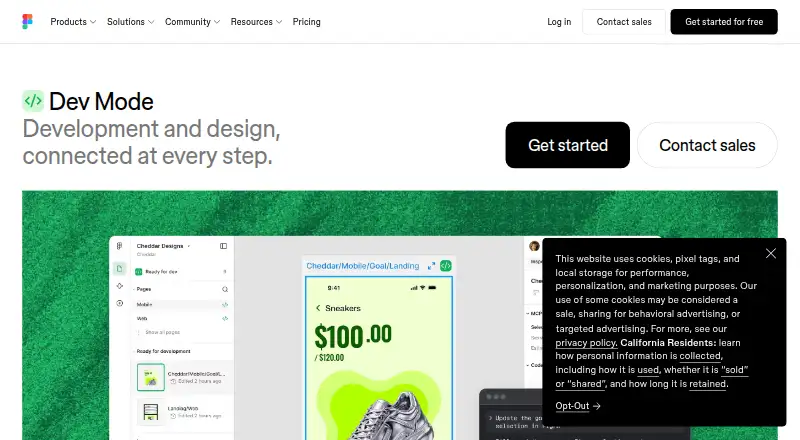
What Figma Dev Mode is
Figma Dev Mode is a developer-focused space for inspecting design files and supporting handoff from design to code. Developers can examine code snippets, component properties, layer data, annotations, measurements and variables, as well as compare frame versions side by side to see changes. Code Connect can associate design components with production components, and the Figma MCP server supplies structured design context for AI agents. Design layers can link to GitHub files, Jira tickets and Storybook stories. The Figma for VS Code extension can surface design-change notifications and code autocomplete in the IDE. Dev Mode is available on paid plans and requires a Full or Dev seat. Free viewers can still inspect basic design information, view measurements and property values, copy CSS, iOS or Android code, export assets and comment. Figma works in desktop browsers, including on macOS, Windows, Linux and ChromeOS, and offers desktop apps for macOS and Windows. Professional Dev seat is listed at $12 a month, billed monthly.
Good
- Inspects measurements, variables and code snippets.
- Compares frame versions side by side.
- Links design layers to GitHub, Jira and Storybook.
- VS Code extension provides change notifications and autocomplete.
- Free viewers retain basic inspection and export options.
Watch out
- Dev Mode requires a paid plan and Full or Dev seat.
- Professional Dev seat costs $12 a month.
- Free viewer inspection is limited to basic information.
Who it suits
It suits developers who need to inspect Figma designs, compare revisions and connect design components to production code. Free viewers may find the basic inspection options sufficient for viewing and commenting.
Verdict
Dev Mode adds detailed inspection and handoff tools to Figma design files, with links to development resources. Access to Dev Mode requires a qualifying paid seat, while free viewers retain a smaller set of inspection options.
Plans and prices
From Figma Dev Mode's own pricing page, checked 14 Oct 2026.
| Plan | Price | What it gives you |
|---|---|---|
| Starter | Free | Unlimited drafts · UI kits and templates · 150 AI credits/day, up to 500/month |
| Professional Collab seat | $3 a month | FigJam, Slides and Buzz · 500 AI credits/month · Basic Dev Mode inspection · monthly |
| Professional Dev seat | $12 a month | Full Dev Mode · FigJam, Slides and Buzz · 500 AI credits/month · monthly |
| Professional Full seat | $16 a month | All Figma products · 3,000 AI credits/month · Unlimited files and projects · monthly |
| Organization Dev seat | $25 a month | Full Dev Mode · Centralized administration · 500 AI credits/month · annually |
| Enterprise Dev seat | $35 a month | Full Dev Mode · Enterprise security and administration · 500 AI credits/month · annually |
The facts
Each one read from Figma Dev Mode's own pages, with the date it was checked.
What it does
- Advanced inspection
- Developers can access code snippets, component properties and structured layer data directly from a design canvas.checked 14 Oct 2026
- AI and MCP
- The Figma MCP server gives AI agents structured design context to generate design-informed code.checked 28 Sep 2026
- API capabilities
- The REST API can extract file objects, layers and properties, retrieve usage data and receive event notifications through webhooks.checked 14 Oct 2026
- Code Connect
- Code Connect maps design components to production components so generated code can use an actual component system.checked 14 Oct 2026
- Compare changes
- Dev Mode provides side-by-side comparison of design changes over time.checked 14 Oct 2026
- Component playground
- The component playground lets developers interactively explore component properties and variants.checked 14 Oct 2026
- Design comparison
- Dev Mode can compare frame versions side by side to show what changed over time.checked 28 Sep 2026
- Design inspection
- Developers can inspect code snippets, component properties, structured layer data, annotations, measurements, variables, and properties.checked 28 Sep 2026
- Desktop requirements
- The desktop app requires macOS 12 or later or 64-bit Windows 10 or later and is available for Intel and Apple Silicon Macs.checked 14 Oct 2026
- Dev resources
- GitHub files, Jira tickets and Storybook stories can be linked directly to design layers.checked 14 Oct 2026
- Dev statuses
- Teams can mark designs ready for development and receive notifications when statuses or designs change.checked 14 Oct 2026
- Focus view
- Focus view isolates the frames being built and filters out the rest of the canvas.checked 14 Oct 2026
- Integrations
- Official integrations include Jira, Confluence, Zapier, Asana, Notion, Linear, Dropbox, Trello, VS Code, Storybook, zeroheight and AWS Amplify Studio.checked 14 Oct 2026
- Jira integration
- The Jira integration embeds Figma files in issues and lets users link or create Jira issues from selected Figma layers.checked 14 Oct 2026
- License
- Figma's service agreements grant limited non-exclusive access rights and prohibit reverse engineering, copying, modification and derivative works, indicating proprietary software rather than open source.checked 14 Oct 2026
- Limit: integrations
- TrustRadius reviewers report that integrations with other platforms can be limited for seamless workflows.checked 14 Oct 2026
- Limit: mobile editing
- Google Play reviewers complain that the mobile app is largely read-only and lacks full dashboard or editing actions.checked 14 Oct 2026
- Limit: performance and navigation
- Reviewers report lag in complex files and file browsing or search that is less intuitive.checked 14 Oct 2026
- Limit: pricing complaints
- Trustpilot's review summary reports dissatisfaction with pricing, hidden fees and unexpected charges.checked 14 Oct 2026
The company
- Company facts
- LinkedIn lists Figma as founded in 2012, headquartered in San Francisco, privately held, with 1,001–5,000 employees.checked 14 Oct 2026
- Company legal name
- The Google Play listing identifies the developer as Figma, Inc.checked 14 Oct 2026
Where it runs
- Component mapping
- Code Connect maps design components to production components so new code can use a team's actual system.checked 28 Sep 2026
- Desktop apps
- Figma provides desktop applications for macOS and Windows.checked 28 Sep 2026
Money
- Free inspection
- Viewers can view measurements and property values, copy CSS, iOS, and Android code, export assets, and comment without purchasing Dev Mode.checked 28 Sep 2026
The full review of Figma Dev Mode
Figma Dev Mode is a developer-focused workspace for inspecting Figma design files and coordinating design handoff. It suits developers working with teams that keep their designs in Figma; its main appeal is bringing implementation details and related resources close to the design, though full Dev Mode access requires a paid seat.
Overview
Dev Mode gives developers a more useful view of a Figma file than a visual mockup alone. It exposes structured layer information, measurements, annotations, variables, component properties, and code snippets, and can compare frame versions side by side. That makes it a strong fit when implementation depends on understanding how a design is built and what changed—not just how it looks.
Handoff connections add practical context: teams can link GitHub files, Jira tickets, and Storybook stories to design layers. Code Connect maps design components to production components, while Figma’s MCP server supplies structured design context to AI agents generating design-informed code. These capabilities are most valuable to teams with established component systems and workflows; they offer less to developers receiving isolated mockups or working outside Figma.
Dev Mode supports Figma files rather than a range of design-file formats. For a broader category directory, see Developer Handoff Software.
Key features
- Design inspection: Inspect code snippets, measurements, layer data, annotations, variables, and component properties. This can give developers concrete implementation context without relying only on visual interpretation.
- Frame comparison: Compare versions side by side to identify changes over time, which is useful when a design evolves during implementation.
- Component mapping: Code Connect associates design components with production components, helping teams align new code with their actual system.
- AI and development tools: The MCP server supplies structured design context to AI agents, and the Figma for VS Code extension can notify users about design changes and provide code autocomplete in the IDE.
- Linked resources: GitHub files, Jira tickets, and Storybook stories can be linked directly to design layers, keeping related implementation references attached to the relevant design.
Free viewers still get a useful inspection subset: measurements and property values, CSS, iOS, and Android code copying, asset export, and commenting. That makes Figma sharing workable for occasional review, but it is not equivalent to the fuller Dev Mode experience.
Pricing
Figma uses a freemium model, with Dev Mode access on paid plans requiring a Full or Dev seat. The free Starter plan costs nothing, billed Free, and includes limited access to Figma products and unlimited drafts. It is suited to exploring Figma or working with shared files, but does not provide a Dev Mode seat.
| Plan | Price and billing | Includes |
|---|---|---|
| Starter | free; billed Free | Limited access to Figma products; unlimited drafts |
| Professional Dev seat | $12 a month; billed Monthly | Dev Mode, Figma Slides, and FigJam; view and comment access in Figma Design |
| Organization Dev seat | $25 a month; billed Annually | Dev Mode, Figma Slides, and FigJam; view and comment access in Figma Design |
| Enterprise Dev seat | $35 a month; billed Annually | Dev Mode, Figma Slides, and FigJam; view and comment access in Figma Design |
Professional is the lowest-cost paid route for developers who need a Dev seat, at $12 a month with monthly billing. Organization and Enterprise seats cost more and are billed annually; the plan details given here describe the same included products and Figma Design access, so the case for those tiers depends on a team's need for those organizational plans rather than a different Dev Mode feature set. Free viewers can inspect basic design information without buying a seat, but teams needing Dev Mode itself must budget for paid seats.
Platforms
Figma runs in a browser on macOS, Windows, Linux, and ChromeOS, and offers desktop applications for macOS and Windows. Its mobile apps for iOS and Android support live device previewing. Dev Mode is associated with Figma design files, and the Figma for VS Code extension brings notifications and autocomplete into the IDE.
Who it's for
Dev Mode is best for developers and product teams already using Figma who need detailed design inspection, linked implementation references, and a clearer handoff path. Code Connect is particularly relevant where design components correspond to a maintained production system. It is a weaker fit for teams whose design work lives in other formats, or for individuals who only need occasional measurements and exports: free viewers can already access a useful subset without a Dev seat.
Figma reports SOC 2 Type 2 and SOC 3 reports, along with ISO/IEC 27001:2022 and ISO/IEC 27018:2019 certifications. For subscription help, Figma directs users to contact support in the app or email [email protected].
Pros and cons
- Pros: Detailed measurements, properties, layers, annotations, variables, and code snippets make design files more actionable for implementation.
- Pros: Side-by-side frame comparison and links to GitHub, Jira, and Storybook connect design changes with development work.
- Pros: Free viewers can inspect measurements and properties, copy platform code, export assets, and comment without buying a Dev Mode seat.
- Cons: Full Dev Mode requires a paid Full or Dev seat, so free access is limited to basic inspection.
- Cons: Support for design files is Figma-only, making it a poor handoff choice when a team relies on other design formats.
- Cons: The $25.00 and $35.00 per month seat options are billed annually, a less flexible commitment than the monthly Professional seat.
Alternatives
Consider Mockplus if its free Basic plan's 10 users, 10 active projects, unlimited designs, three project folders, and one Admin suit a small team better. UXPin is another freemium option; its Free plan is available after a 14-day trial and includes two prototypes and 50 AI credits.
Justinmind offers a free plan with one project, unlimited screens and viewers, UI design, wireframing, and interactive input forms. Pixso may suit teams prioritizing generous free collaboration limits: its Free plan includes unlimited viewer seats and draft files, plus three design files and three whiteboard files.
ProtoPie has a free tier capped at two cloud prototypes, eight scenes per prototype, and 50MB of cloud storage. Lunacy offers a free tier with up to 10 cloud documents, 10 document editors or exporters, and 30 days of version history.
Zeplin Flows may fit a team that can work within its free allowance of one project, 100 screens, unlimited members, and limited weekly AI reviews and organization runs. Marvel has a free plan limited to one user and one project.
Verdict
Choose Figma Dev Mode if your team builds from Figma files and developers need more than a visual handoff: its inspection tools, version comparisons, component mapping, and links to implementation resources make that context part of the design workflow. Look elsewhere if your team uses other design-file formats, or stay with free viewer access if basic measurements, code copying, asset export, and comments are enough to get the job done.
Getting started
- Visit https://www.figma.com/dev-mode/ to access Dev Mode information.
- Use Figma in a browser on a supported desktop operating system, or its desktop app for macOS or Windows.
- Choose a paid Professional, Organization or Enterprise Dev seat for Dev Mode access.
- Install the Figma for VS Code extension if you want its IDE notifications and autocomplete.
- Open a design file to inspect its layers and available handoff details.
Limits worth knowing
Starter is free but provides limited access to Figma products. Free viewers can inspect basic measurements and property values, copy CSS, iOS and Android code, export assets and comment, but Dev Mode requires a paid Full or Dev seat.
Questions
Is Figma Dev Mode free?
Starter is free with limited access to Figma products, and free viewers can inspect basic design information. Dev Mode requires a Full or Dev seat on a paid plan.
How much does a Dev seat cost?
The Professional Dev seat costs $12 a month, billed monthly. Organization Dev seat costs $25 a month and Enterprise Dev seat $35 a month, both billed annually.
Which platforms can run Figma?
Figma is browser-based and runs on macOS, Windows, Linux and ChromeOS. Desktop apps are available for macOS and Windows, and mobile apps for iOS and Android.
What can free viewers inspect?
They can view measurements and property values, copy CSS, iOS and Android code, export assets and comment.
Does Dev Mode connect with development tools?
Design layers can link to GitHub files, Jira tickets and Storybook stories. The Figma for VS Code extension can provide design-change notifications and code autocomplete.
Who makes Figma Dev Mode?
Dev Mode is part of Figma. Figma reports SOC 2 Type 2 and SOC 3 reports, as well as ISO/IEC 27001:2022 and ISO/IEC 27018:2019 certifications.
Alternatives to Figma Dev Mode
- 1

UXPin
Free planAndroidiOSWebmacOS8.4From $29 a month - 2

Justinmind
Free planAndroidiOSWebAPI8.3From $19 a month - 3

Mockplus
Free planAndroidiOSWebExtension8.3From $2.98 a month - 4
Marvel
Free planAndroidiOSWebAPI8.2From $12 a month - 5
Pixso
Free planAndroidiOSWebAPI8.2From $4 a month - 6
Lunacy
Free planWebAPILinuxmacOS8.0From $4.99 a month